

Picture Quality
The MSI MPG 322URX is built around a 31.5-inch, 10-bit QD-OLED panel developed by Samsung Display. More specifically, it’s based on the third generation of QD-OLED technology, which introduces a new material stack for improved peak brightness, a refined subpixel layout with reduced color fringing, and lower risk of image retention. While newer generations of QD-OLED panels exist, the technology has only seen minor refinements since the third generation. There is no reason not to consider a monitor based on it.
The panel runs at a native resolution of 3840×2160, giving it a pixel density of almost 140 PPI and a dot pitch of 0.1816 mm. It uses a triangular RGB subpixel layout, and while you can theoretically spot minor color fringing if you deliberately search for it, the effect is negligible on the MPG 322URX. I used this monitor for several weeks for text-heavy workloads, Photoshop, Lightroom, everyday Windows and macOS tasks, gaming and multimedia, and fringing never drew my attention. Overall image sharpness is excellent.
Like other OLED monitors, the MSI MPG 322URX doesn’t rely on a traditional LED backlight. Instead, its self-emissive pixels offer all the expected benefits: infinite contrast, true blacks, zero haloing, and exceptional response times.
The monitor uses a glossy panel with solid reflection handling. Its daytime usability depends heavily on the brightness of your environment, but I had no trouble using it in a moderately lit room as long as it was kept away from direct light sources such as windows or overhead lamps. For maximum visual impact, however, you will want to darken your surroundings because of a known limitation of QD-OLED technology: raised black levels in bright rooms. Samsung’s QD-OLED panels do not use a polarizer, a component that helps suppress reflections and preserve deep black levels under ambient light. Without it, reflected light can lift the blacks and make them look gray or even slightly purple. To Samsung’s credit, the anti-reflective coating and subpixel structure have improved compared to early QD-OLED generations, and much of the purple tinting is now gone. Still, the missing polarizer is a hardware limitation, and nothing can fully compensate for it.
Even so, this limitation is far from a showstopper. In everyday use you won’t be sitting next to another OLED monitor, scrutinizing tiny differences in black depth between panel types. The bigger point is that if you spend most of your time in a very bright room, an OLED display probably isn’t the ideal choice to begin with. In those conditions, an IPS monitor with a Mini-LED backlight will deliver higher SDR brightness and cope with ambient light far more effectively. So while QD-OLED’s elevated blacks can show up in the wrong environment, that environment is one where OLED monitors generally struggle anyway. Give the panel a dim room and it will produce excellent blacks, no need for a completely dark space.
To test picture quality, I used an X-Rite i1Display Pro colorimeter with both DisplayCAL – a free, powerful display calibration and profiling tool – and Calman Ultimate, the industry-standard suite for display testing and calibration.
Testing was done on firmware version 024, the latest available at the time of review.
Picture Quality at Factory Settings
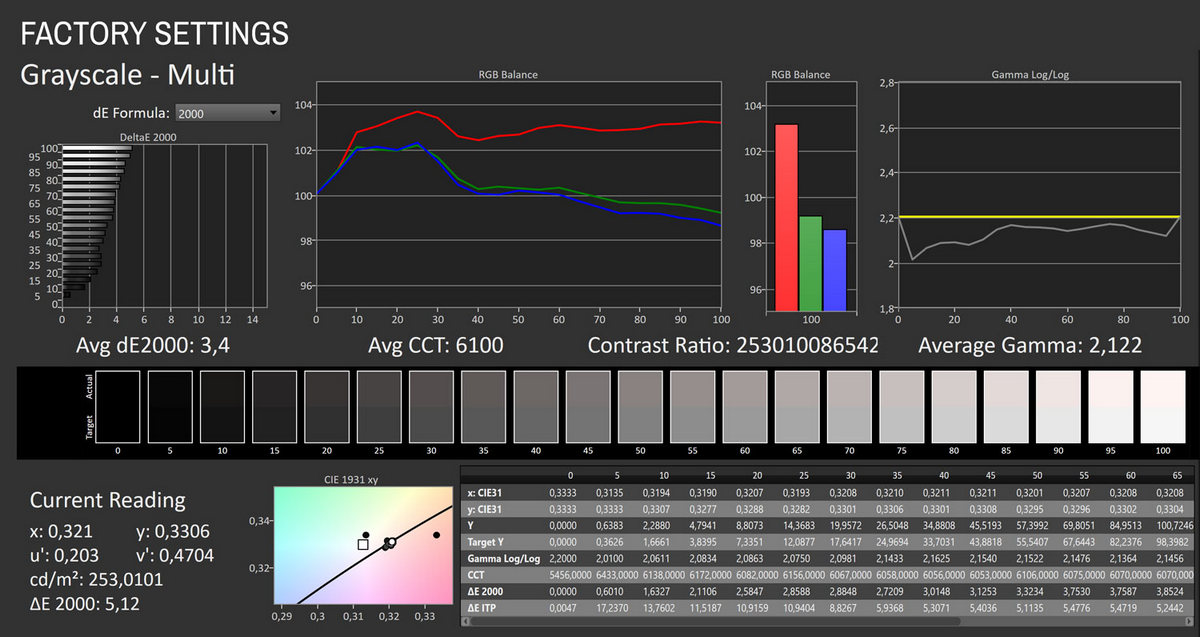
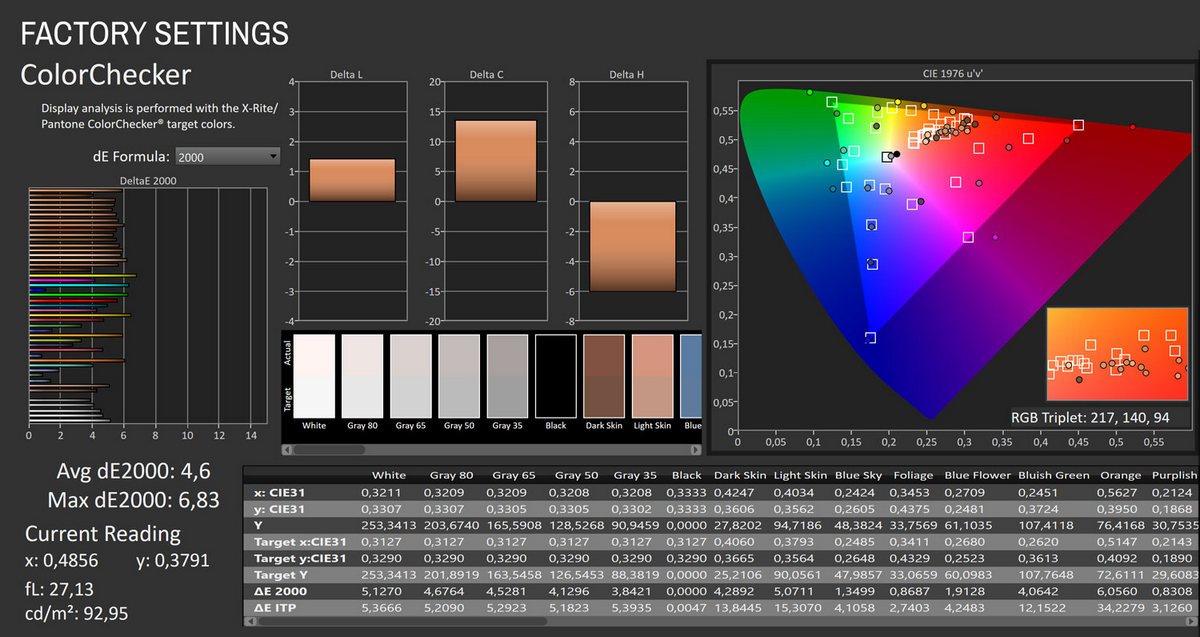
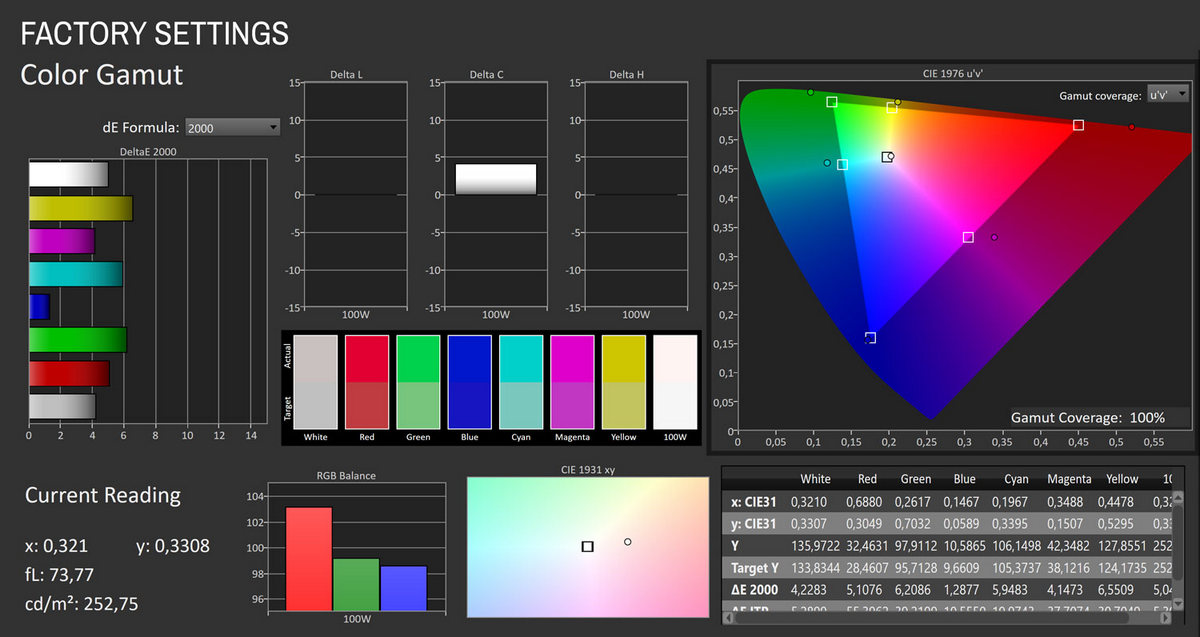
The MSI MPG 322URX delivers solid factory performance for an OLED gaming monitor, though its default picture mode is not tuned for strict sRGB accuracy. Gamut measurements confirm full sRGB coverage with noticeable extensions beyond the standard primaries, particularly in red, green and cyan. This leads to slightly oversaturated colors in highly saturated patches, which is reflected in several ∆E values landing between 4 and 7. Mid-tone colors and skin tones, however, remain closer to the target, so the overall image still appears balanced to the eye despite the wide-gamut nature of the panel. The color accuracy results reinforce this pattern. While average ∆E sits at 4.6, the majority of errors stem from the same saturation overshoot rather than hue shifts or severe inaccuracies. Neutral grays and lighter tones are rendered with comparatively low error, which helps maintain natural-looking content across typical SDR material. For non-color-critical tasks such as gaming, entertainment or general desktop use, the default mode is perfectly acceptable. Grayscale and gamma tracking are generally good but leave room for refinement. The monitor defaults to a slightly warm white point around 6,100 K, and red runs a bit higher than green and blue across much of the luminance range, producing an average grayscale ∆E of 3.4. Gamma measures at 2.12 on average, a bit lower than the 2.2 target, so shadows appear slightly lifted. These deviations are minor in practice, though users working in color-sensitive environments will want to improve on the factory state of MSI’s monitor.
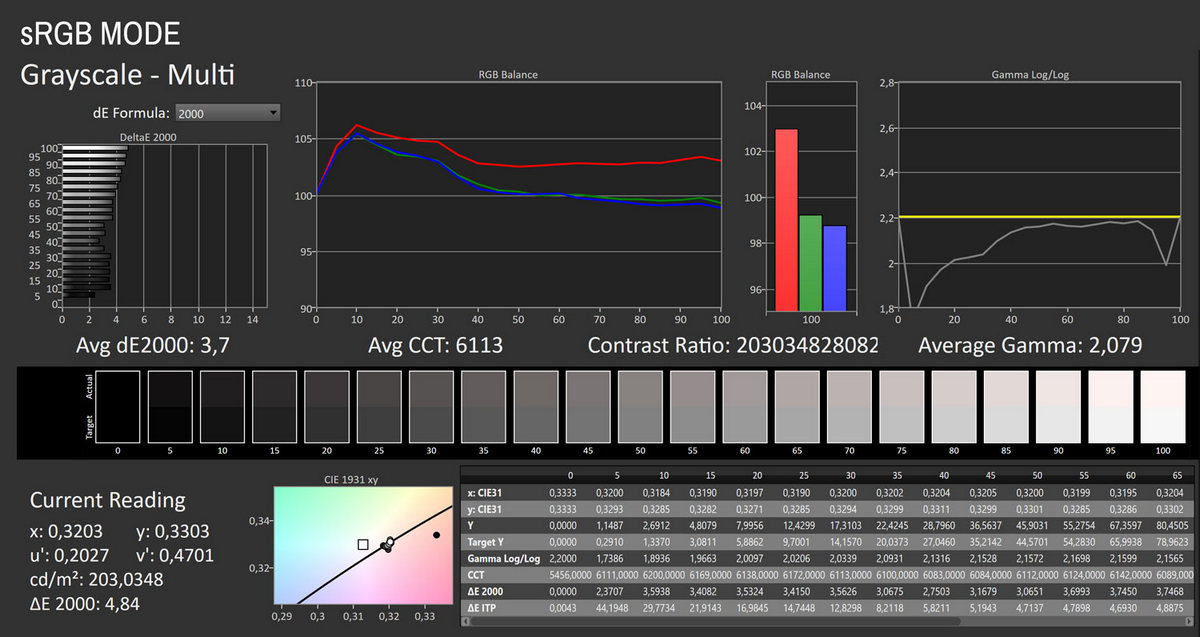
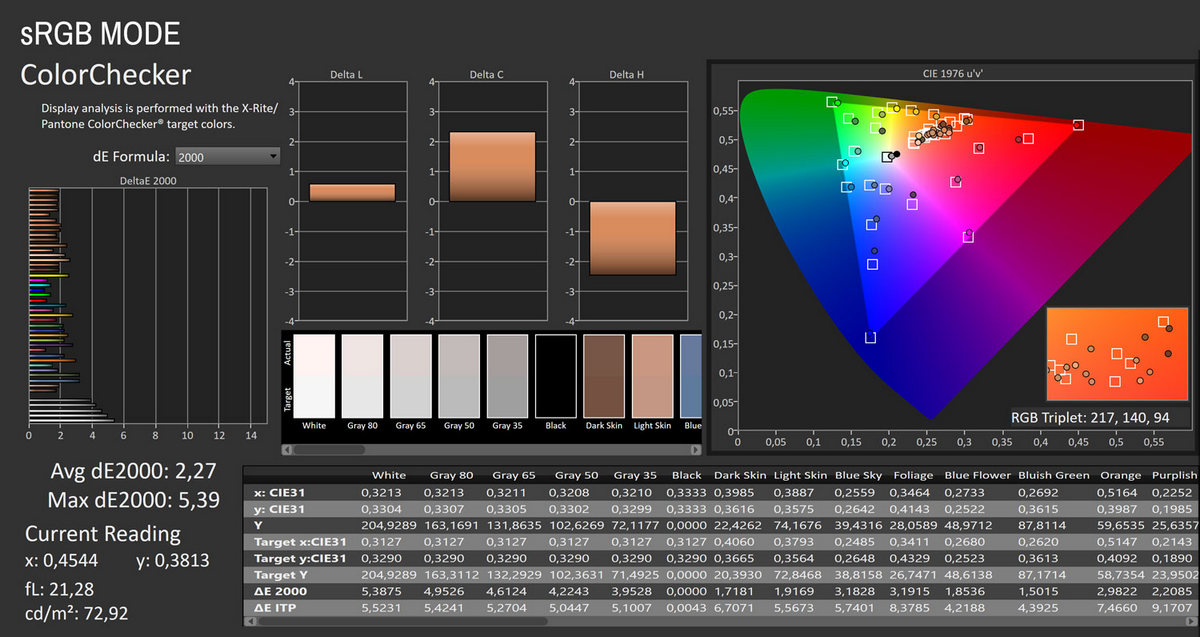
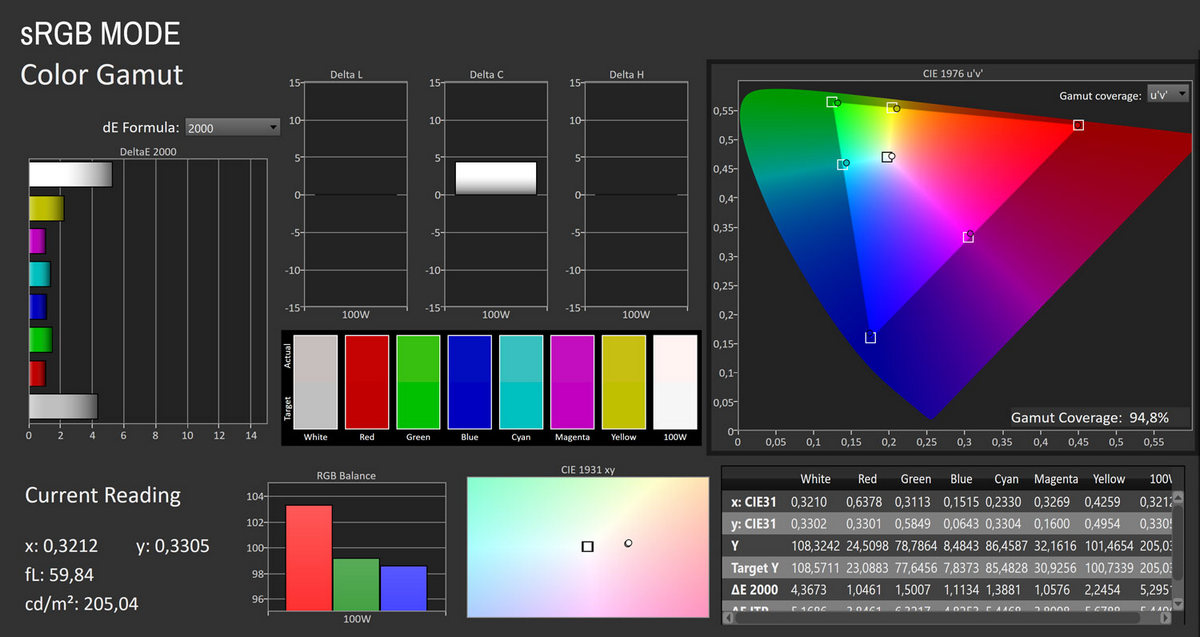
With the monitor set to its dedicated sRGB mode (Professional > Pro Mode > sRGB), color accuracy improves significantly compared to the factory default wide-gamut behavior. Gamut coverage tightens to 94.8% of the sRGB space, and although the gamut is slightly undersaturated toward the greens and cyans, the primaries land close to their intended coordinates. ∆E values for the saturated color points remain very good, showing only small hue and luminance deviations, and the overall color volume is well controlled for SDR content. Looking at the color accuracy, the average ∆E drops to 2.27, with the worst patch peaking at 5.39. Most patches fall comfortably below the perceptible threshold, and the largest errors occur in darker skin tones and deep shadows. Even so, the monitor delivers accurate, natural-looking colors for photo editing, web work, and general SDR content consumption when locked to the sRGB clamp. Grayscale and gamma performance also improve in sRGB mode. The average grayscale ∆E sits at 3.7, and RGB balance is more consistent than in the default mode, although still slightly red-leaning. Color temperature averages 6,113 K, which is a mild but visible warm shift from the ideal 6,500 K target. The gamma behavior in the sRGB mode is clearly the weak point of this preset. Instead of tracking the 2.2 target with a smooth, consistent curve, the monitor dips noticeably below the line in the lower stimulus range, then gradually climbs and fluctuates through the mid-tones. This pattern results in shadows that appear slightly too bright and mid-tones that lack the expected depth and contrast. While the overall average gamma of 2.079 does not sound dramatically off, the shape of the curve is what matters, and here it shows instability rather than a controlled correction. This means dark scenes can look a bit flatter than intended. It is not severe enough to ruin SDR image accuracy, but it prevents the sRGB mode from reaching the level of precision that content creators expect from a reference-calibrated display.
Picture Quality with Modified Settings
Most users will want to keep the panel’s wide gamut active rather than enabling the sRGB clamp. To maximize performance in this mode, I made a few targeted adjustments in the OSD while cross-referencing measurements in real time:
Gaming > Game Mode > User
Professional > Pro Mode > User
Image > Brightness > 100
Image > Color Temperature > Customization > R 94/G 97/B 100
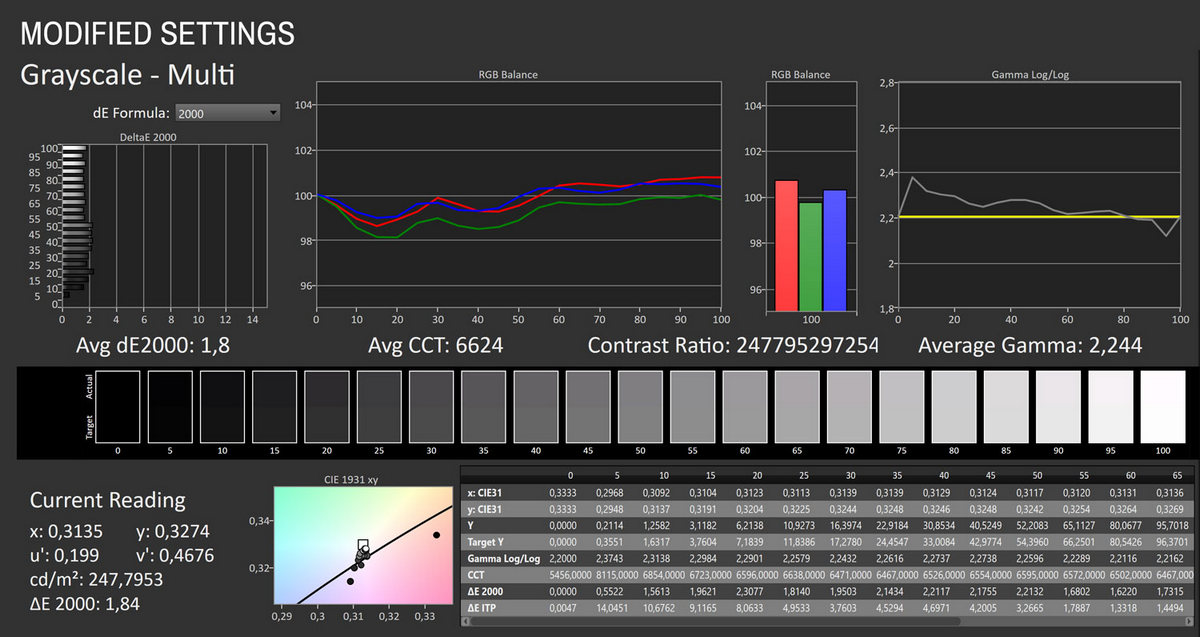
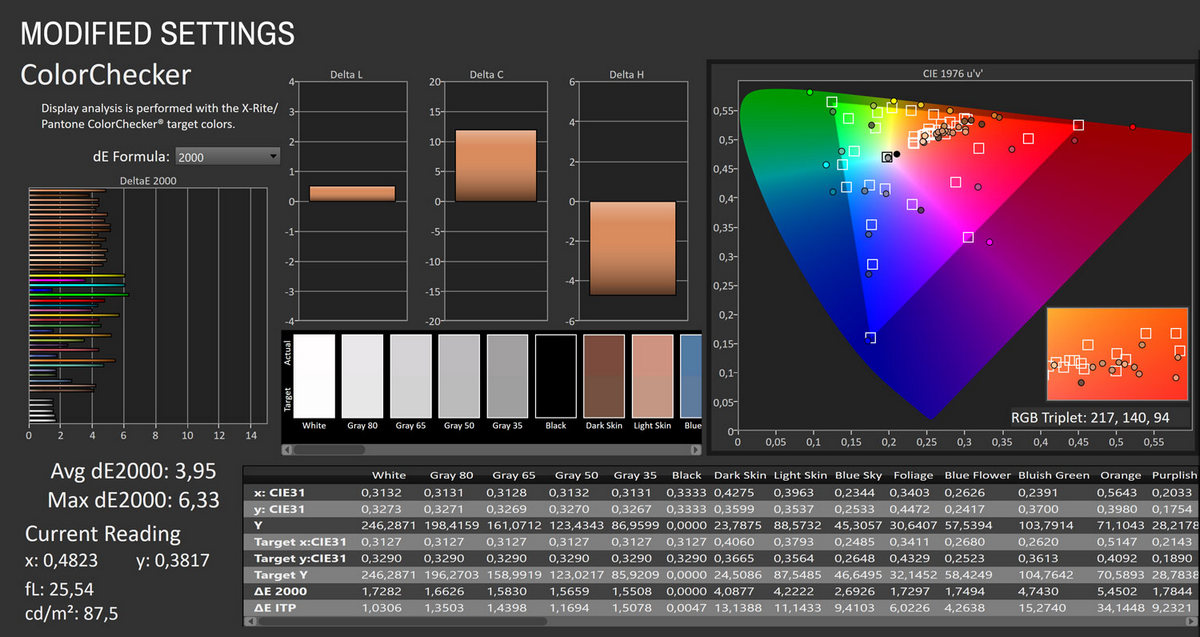
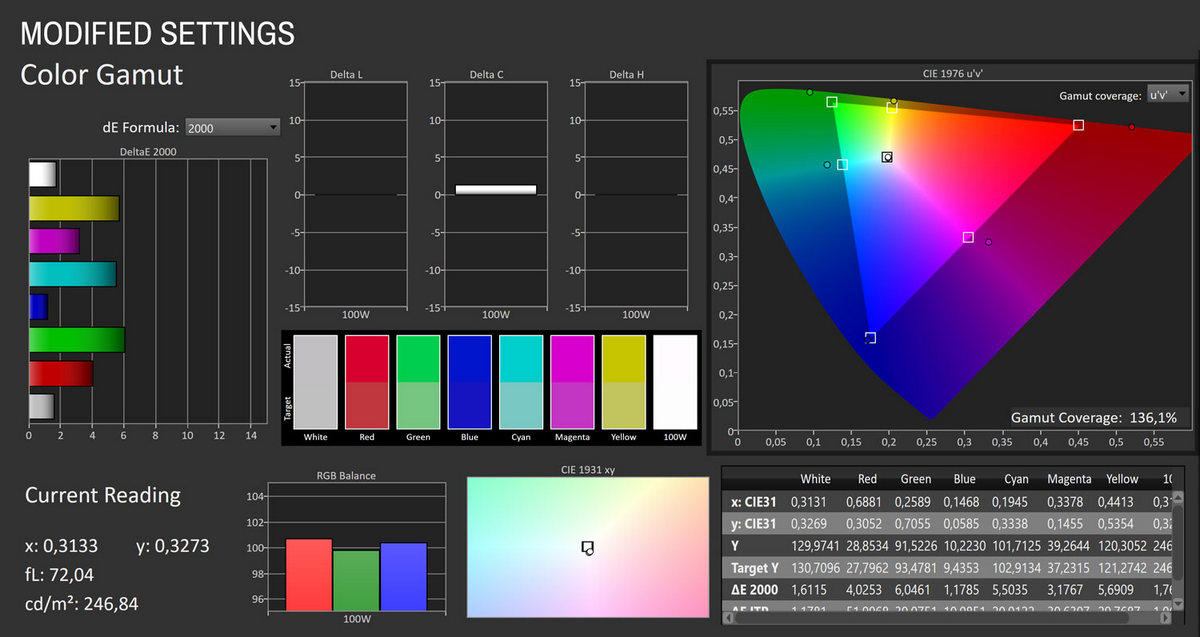
Before going over the panel’s performance after manually adjusting the settings as listed above, one detail is worth pointing out. The monitor’s behavior when switching to the Customization color temperature setting is unusual and creates an unnecessary hurdle for anyone who wants to fine-tune the image. Instead of exposing the existing RGB gains at the current luminance level, the MPG 322URX immediately drops all channels to a flat 50, which pulls the brightness down to about 84 cd/m². No other monitor I have tested behaves this way. Normally, the user starts from the factory baseline and adjusts the gains to achieve a more accurate white point without altering overall luminance. Here, the forced brightness reduction means you must first raise the backlight again—which is done by boosting all three channels to 100—then rebuild the white balance from scratch, which complicates calibration.
With the manual tweaks applied, the MSI MPG 322URX produces a much more controlled SDR image. The gamut remains wide at roughly 136% of sRGB, so the panel still covers the full sRGB space with a substantial extension toward more saturated colors. Primary and secondary saturation errors are moderate, with ∆E values for the six points mostly between 2 and 4, which is perfectly acceptable for a wide-gamut gaming display measured against sRGB. The biggest improvement appears in grayscale and tone response. The average grayscale ∆E drops to 1.8, with all steps staying very close to the target, and the average correlated color temperature moves to about 6,620 K. RGB balance is significantly tighter across the entire luminance range, so neutrals no longer have the warm cast seen at factory defaults. Gamma now tracks the 2.2 target much more faithfully, with an average of 2.24 and only small deviations in the mid-tones. Subjectively, this gives the image better depth and contrast without crushing shadows. Measured color accuracy performance reflects the wide gamut more than calibration errors. The average ∆E of 3.95 and maximum of 6.33 are driven mainly by oversaturation in highly saturated colors, while grays and skin tones sit noticeably lower. For content mastered in sRGB this is still very usable, and the manual calibration clearly improves neutrality and tonal accuracy.
In simpler terms, the slightly modified image is a treat to look at, regardless of the content.
Luminance, Contrast and Color Uniformity

The MPG 322URX shows very good panel uniformity for a 32-inch QD-OLED. Brightness variation stays tight across the entire screen, with most zones deviating by only 1 to 3% from the center and no section falling outside recommended tolerances. Color uniformity is similarly well controlled. Average ∆E values stay low throughout the grid, and even the worst performing zones remain comfortably within acceptable limits. Contrast stability, often a challenge for large panels, also holds up well. No zone shows meaningful compression or washout, and the per zone deviations are minor enough that they will never be perceptible in real use. The result is a panel that looks consistent across its full area, whether you’re working with bright content, dark UI elements, or color critical material.
HDR Performance
The MSI MPG 322URX supports the HDR10 format. Its HDR implementation is excellent. When HDR is enabled, the monitor switches to a dedicated set of settings designed exclusively for high dynamic range content. Once HDR is disabled, the monitor automatically returns to SDR settings without any need for manual adjustment in the OSD.
There are three HDR picture profiles to choose from, found in the Image > DisplayHDR menu: True Black 400, Peak 1000 nits, and EOTF Boost.
Here’s what the peak luminance measurements look like across various window sizes with the “Peak 1000 nits” HDR profile applied.
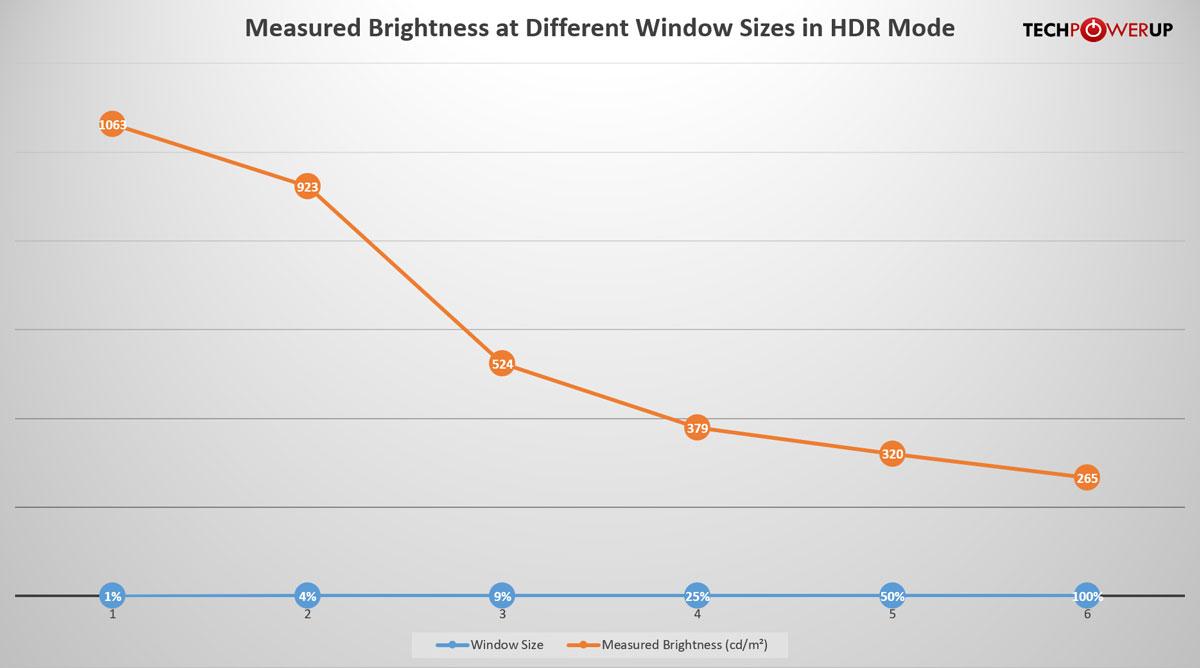
The HDR brightness curve of the MPG 322URX follows the expected QD-OLED behavior, with very strong peak luminance in small highlights and a gradual reduction as the window size increases. A 1% window reaches 1,063 cd/m², which is a good result for a 32-inch QD OLED panel and gives HDR effects plenty of punch. At 4%, brightness drops to 923 cd/m², still high enough to deliver impactful specular highlights. The more aggressive falloff begins at the 9% window, where brightness lands at 524 cd/m². From there it continues to scale down, reaching 379 cd/m² at 25%, 320 cd/m² at 50%, and 265 cd/m² at a full screen white. This behavior is normal for self-emissive panels that need to limit power and heat as larger portions of the screen brighten. In practical HDR use, the strong small window performance is what matters most, and the MPG 322URX clearly delivers in that regard, offering vivid highlights while maintaining stable mid-tone brightness.
Viewing Angles

The viewing angles of the QD-OLED panel built into the MSI MPG 322URX are excellent. There’s no visible shift in colors from any sitting position or when changing positions.
OLED Burn-in Prevention Features
The MSI MPG 322URX offers multiple OLED burn-in prevention algorithms. They are found in the MSI OLED Care menu within the OSD and can be toggled off, should you opt to not use them.
Pixel Shift – The monitor subtly shifts the entire image at regular intervals so no pixel displays the exact same static content for long. The movement is very small and invisible during normal use. Its purpose is to reduce localized wear by distributing static image elements across a slightly wider pixel area.
Panel Protect – This is MSI’s automatic pixel refresh cycle. When the monitor has been active for four hours, it prompts the user to run a compensation routine that recalibrates the organic material and helps equalize pixel wear. The process takes a couple of minutes and should not be interrupted. You can extend the activation interval to sixteen hours if the default schedule is disruptive.
Static Screen Detection – If the monitor detects that a large portion of the screen has not changed for a defined period, it automatically lowers brightness. This reduces stress on static UI elements such as application toolbars, documents, or paused game screens.
Boundary Detection – Bright vertical or horizontal boundaries, like sidebars or pillarboxing, can accelerate uneven aging. The monitor identifies these boundaries and reduces their luminance to lessen the contrast between static regions and the rest of the image, lowering the likelihood of permanent retention.
Taskbar Detection – When a Windows taskbar or similar on-screen element is detected, the monitor dims only that region. This is one of the most common sources of burn-in on desktop OLEDs, so automatically reducing its brightness meaningfully slows pixel wear.
Multi Logo Detection – This algorithm monitors the screen for multiple static logos or HUD elements. If detected, it dims only those specific shapes and patterns. This is useful for games with static HUDs, news tickers, streaming overlays, and application icons.
For additional peace of mind, MSI includes burn-in protection under the product’s three-year warranty.
About the Author


