

I recently shipped a
non-trivial Ghostty feature (unobtrusive macOS automatic updates)
that was largely developed with AI.
I’m regularly asked to share non-trivial examples of how I use
AI and agentic coding tools and this felt like a golden opportunity to
walk through my process with a well-scoped, non-trivial, real-world,
shipping feature1.
This post will share every single agentic coding session I had on the path
to shipping this feature, unedited and in full. Alongside it, I’ll provide
some additional context about my process and reasoning. And yes, I’ll also
share the token cost for those curious about that, too.
Important: there is a lot of human coding, too. I almost always go in after an AI does work
and iterate myself for awhile, too. Rather than say that at every turn, I’m just saying it once
here. Therefore, you may see some discrepancies between what the AI produced and what ended up in
the final code. This is intentional and I believe good AI drivers are experts in their domains and
utilize AI as an assistant, not a replacement.
The Feature
The finished feature this blog post is about is the macOS unobtrusive
update notification feature. This feature shows update status within the
terminal window without interrupting work by creating windows, grabbing
focus, etc.
Let’s set the stage for what lead to this feature (pun intended, as you’ll see shortly).
During a high-profile OpenAI keynote, a demo was rudely interrupted by
a Ghostty update prompt:
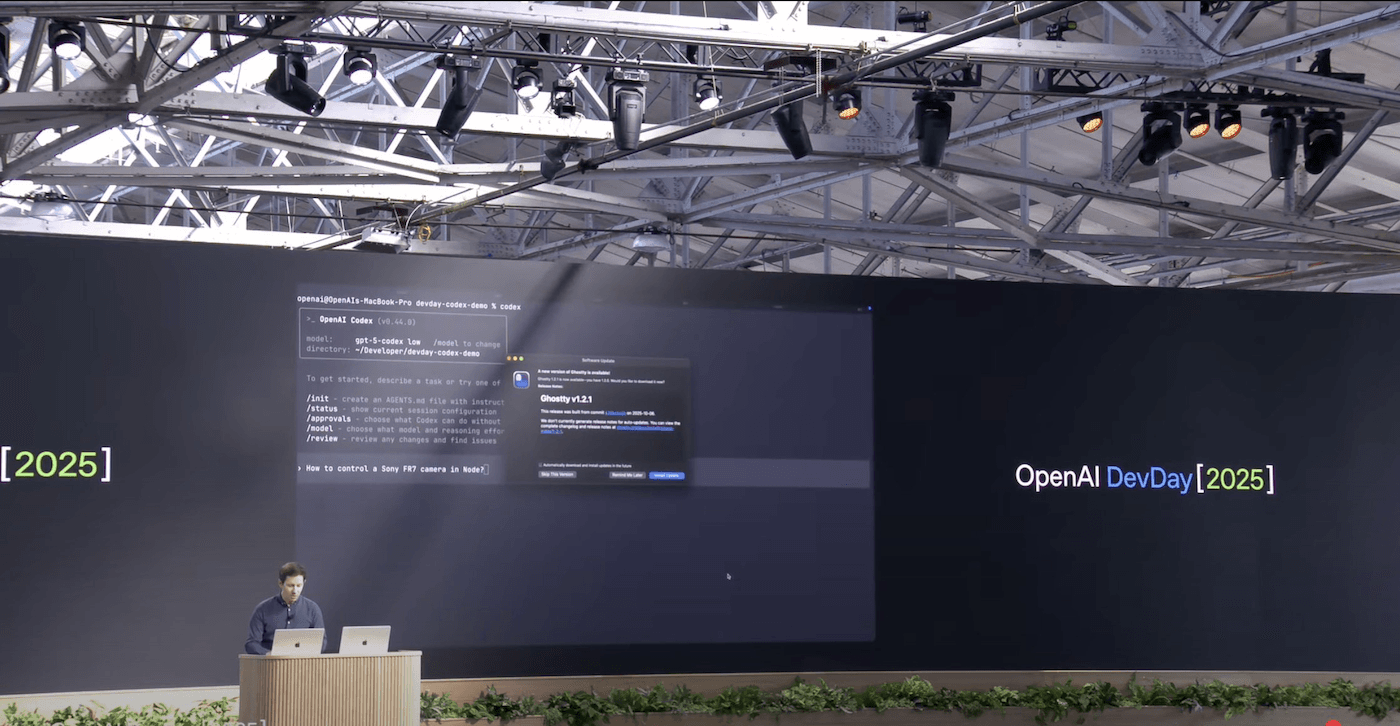
I wanted to ensure that never happened again2. The path I decided to
take was to make update notifications unobtrusive. Instead of popping up
a window, the app would instead show a small, non-modal GUI element somewhere
that wouldn’t interrupt the user.
Pre-AI Planning
So I pulled out my AI tooling. Absolutely not. I began by coming up
with a rough plan of how I wanted this to work. Ghostty uses
Sparkle, an extremely popular macOS update framework.
I poked around their docs and found that they support
custom UI through Obj-C protocols.
You have to reimplement a ton of stuff from scratch, but it is possible.
Okay, so I had a rough idea of backend. For frontend, I wasn’t really
sure (and it isn’t my area of expertise). I had this really vague idea
that it should be a little button embedded in the title bar, and I know
macOS supports custom UI in the titlebar via
titlebar accessory controllers,
but beyond that I didn’t have much of a sense of how it should look or feel.
But that’s enough to get started. AI is a very good prototyper, so even
knowing what you don’t know is useful enough to get started. I had a strong
enough sense of the big picture.
First Session: Prototyping the UI
Here is my first agentic coding session,
with the starting prompt:
I want to enable custom, unobtrusive update notifications and installs
by customizing SPUUserDriver. Let’s start by planning the custom UI we’ll
need. We’ll ONLY work on UI. Create a plan for creating SwiftUI views that
can show the various states that are required by SPUUserDriver. I think the
best place for these to show up is in the macOS window titlebars on the
top-right. Create a plan to put it there. Consult the oracle.
Frequent question: “What is the oracle?” It is an Amp-specific read-only
subagent that uses a slower, higher-cost model that is generally
better at thinking about things. I consult the oracle for all planning.
To start, I decided to prototype the UI first.
Notice here that I don’t send the agent off to build the full feature.
There are a couple reasons for this. First and foremost, I still don’t
even know what I want the UI/UX to be like, so I can’t possibly coherently
expect an AI to do that for me amongst other changes. Second, smaller
chunks of work are easier to review, understand, and iterate on.
Another thing to notice is that I ask it to only create a plan and not
to write any code. Since this is a relatively vague request, it’s important
that I review a plan before it goes off and does a ton of work (and
spends a ton of tokens doing it).
Tip: Creating a comprehensive plan interactively with an agent is a really important
first-step for anything non-trivial. I usually also save it out (via the agent) to something like
spec.md and in future sessions I can say “Consult the @spec.md and work on some task“.
The agent came up with an agreeable enough plan that I let it go ahead
and implement it. You can see the rest of my conversations as I iterate on
that.
The UI it made was directionally very good. It had a ton of polish
issues (spacing, colors, etc.) but seeing the UI gave me the spark of
inspiration I needed to know what I wanted.
Tip: I very often use AI for inspiration. In this case, I ended up keeping a lot (not all) of
the UI code it made, but I will very often prompt an agent, throw away everything it did, and redo
it myself (manually!). I find the “zero to one” stage of creation very difficult and time
consuming and AI is excellent at being my muse.
Hitting a Wall
You can see in chats 11 to 14 that we’re entering the slop zone.
The code the agent created has a critical bug, and it’s absolutely
failing to fix it. And I have no idea how to fix it, either.
I’ll often make these few hail mary attempts to fix a bug. If the
agent can figure it out, I can study it and learn myself. If it doesn’t,
it costs me very little. If the agent figures it out and I don’t understand it,
I back it out. I’m not shipping code I don’t understand.
While it’s failing, I’m also tabbed out searching the issue and trying to
figure it out myself.
It’s at this point that I know I need to step back, review what it did,
and come up with my own plans. It’s time to educate myself and think
critically. AI is no longer the solution; it is a liability.
Cleanup Sessions
I spend the next few sessions guiding the agent to clean up the code.
The second session
focused on moving some methods around into better places I recognized:
Let’s move the pill background, foreground, and badge functions from
@macos/Sources/Features/Update/UpdateAccessoryView.swift to
@macos/Sources/Features/Update/UpdateViewModel.swift and make them more
generic (background, foreground, badge)
The third session
added documentation to the code:
Update the docs for @UpdateBadge.swift
Tip: Adding documentation is a really important step because it helps reaffirm your own
understanding of the code as well as educate future agents that may read and modify this code. I
find agents do much better when they have both natural language descriptions as well as the code
itself.
The fourth session
moves the view model to an app-global location, since the original
work put it in a window scope and update information is app scoped.
Move the update view model data to AppDelegate since the update information
will be app-global.
Throughout these, I am usually dropping in and making minor manual
changes as well.
The cleanup step is really important. To cleanup effectively you have
to have a pretty good understanding of the code, so this forces me to
not blindly accept AI-written code. Subsequently, better organized and
documented code helps future agentic sessions perform better.
I sometimes tongue-in-cheek refer to this as the “anti-slop session”.
Facing “The Bug”
Time to get back to that bug that I found in that initial session.
I once again spent a few sessions trying to get the agent to figure this
out. I start vague, and slowly get more specific with how I’d approach it.
First, the vague session:
For standard, native tabs, the update accesory view is not visible.
It should remain visible in the titlebar of the window.
Failure. Then, I get more specific:
We need to update @macos/Sources/Features/Terminal/Window Styles/TerminalTabsTitlebarTahoe.swift
tab bar constraints to align the right edge of the tab bar with the left
edge of the update accessory view so it remains visible.
Failure. Then, I try a different, specific approach:
What if we changed the @macos/Sources/Features/Terminal/Window Styles/TitlebarTabsTahoeTerminalWindow.swift
to make the tab bar a top accessory view rather than a bottom one to make
our tabs go into the titlebar?
Failure. One last attempt:
The “right accessory view” and layout of @macos/Sources/Features/Terminal/Window Styles/TitlebarTabsTahoeTerminalWindow.swift
is conflictig with the update accessory view setup in
@macos/Sources/Features/Terminal/Window Styles/TerminalWindow.swift Can we
constrain the tab bar to always appear left of the update notice?
Failure.
This whole time, I’ve also spent time trying to solve this myself through
manual research and human effort. My more specific prompts are based on
things I’ve learned through that process. But overall, it was clearly
not working.
I don’t think I can figure this out on my own, so I decide to pivot.
I decided that for these problematic titlebar styles, let’s put the update
notices in the bottom-right corner of the window overlaid on top of the
content view rather than in the titlebar.
I need to support this anyways because Ghostty has a configuration
to hide the titlebar entirely. So, even if I can solve the titlebar
styling issue later, I still need to support this other mode.
My next session
moves forward with this plan with a very specific prompt:
Augment the @macos/Sources/Features/Update system to also support an overlay
approach in @macos/Sources/Features/Terminal/TerminalView.swift The update
notice should appear at the bottom of the window. It should go over the
text (so it doesn’t resize the terminal view). All clicking behaviors
should otherwise be the same as the accessory view.
It did a really good job with this. I did a lot of manual polish after
(moving stuff around, renaming things, etc.) but the core work was solid.
Here is a video of the feature shortly after this session, showcasing
how the update notice appears in the bottom-right corner of the window
for certain titlebar styles or when the titlebar is hidden:
Starting the Backend
The UI was feeling good enough. I had noted a bunch of polish issues
I wanted to tackle later but I wanted to move on to the backend work
primarily to see if I’d discover any unknown unknowns that threw a
wrench in my plans.
I manually created a file with a scaffold of incomplete functions and
various TODO comments. I then started
a session to complete that work for me:
Complete the @macos/Sources/Features/Update/UpdateDriver.swift Read the
Sparkle documentaiton as necessary to understand the functionality.
https://sparkle-project.org/documentation/api-reference/Protocols.html
Tip: AI is very good at fill-in-the-blank or draw-the-rest-of-the-owl. My pattern here of
creating scaffolding with descriptive function names, parameters, todo comments, etc. is a really
common one for me and it works very well.
It actually did a really bad job here and I ended up throwing
all of this code away. The code it produced worked, but it was obviously
the wrong approach. It conflated a lot of different concerns and the
way it was storing state in the driver was clearly wrong.
When I studied what it did, I realized it was because the view model was
structured in a suboptimal way, so I switched gears into cleanup mode to
give AI (and humans, if I chose to write it myself) the better framework to
work with.
Cleanup Again, Big Time
Experience has taught me that the cleanliness of a UI frontend and business
logic backend is often dictated by the quality of the view model in between.
So I spent some time manually restructured the view model. This involved
switching to a tagged union rather than the struct with a bunch of
optionals. I renamed some types, moved stuff around.
I knew from experience that this small bit of manual work in the middle
would set the agents up for success in future sessions for both the
frontend and backend. After completing it, I continued with a marathon set of
cleanup sessions.
After doing the restructuring, the first thing I did was
ask the agent to once again complete the owl,
this time inspecting my changes and updating dependent code to the new
style and removing the old:
Update @macos/Sources/Features/Update/UpdateViewModel.swift to use the
newUpdateStateexclusively. Renamestate2tostate(remove the old state).
Then I asked it remove additional dead code:
I think we can get rid of UpdateUIActions. They’re not used anymore since
our UpdateState has callbacks.
Then I broke the build myself cleaning up some things. I had a
meeting to hop onto so I decided to
let the agent fix it while I was busy:
Run the build and fix the errors
Tip: “I broke a bunch of things, please fix my mess.” is another frequent use case I have for
agents. I’d say generally this fits within the same fill-in-the-blank pattern as before.
Later, I started doing some refactors on some of the views again:
Turn each @macos/Sources/Features/Update/UpdatePopoverView.swift case into a
dedicated fileprivate Swift view that takes the typed value as its parameter
so that we can remove the guards.
Change
iconNamein @macos/Sources/Features/Update/UpdateViewModel.swift to
be an optional, return nil for blank. Update usage.
Simulation
In my first UI session, I had the agent create some demo code so I could
see the UI in action without real update checks. But update flows have
a number of scenarios and up to this point I only tested the happy path.
In my next session
I extracted the simulation code into a dedicated file and asked the agent
to create more scenarios:
Extract the update simulation code in @macos/Sources/App/macOS/AppDelegate.swift
into a dedicated file in @macos/Sources/Features/Update . This should
contain multiple simulation scenarios (happy path, not found, errors, etc.)
so that we can easily try different demos.
Tip: Agents are great at generating tests and simulations. The simulation code specifically
that it generated here is honestly pretty gross but it works and it’s not part of the release
binary so the quality doesn’t matter to me. I didn’t even bother cleaning it up beyond the basics
you can see in the session.
I then ran the various simulations and found a number of UX improvements.
Last Mile
At this point, I had a working backend and frontend and I needed to
hook it all up.
My next session
prompted the agent to do this:
Make an
UpdateControllerclass the same as
https://github.com/sparkle-project/Sparkle/blob/2.x/Sparkle/SPUStandardUpdaterController.m
but for our updater types.
This required some back and forth and manual polish, but it got there.
I then made some minor improvements:
For our update available state with the appcast, look at
https://sparkle-project.org/documentation/api-reference/Classes/SUAppcastItem.html
and show other relevant metadata if its set. For example, content length for
size.
Anything Else?
My last prompt to an agent
is always to ask what else I might be missing.
I do this regardless of if I manually wrote the code myself or not.
Are there any other improvements you can see to be made with the
@macos/Sources/Features/Update feature? Don’t write any code. Consult the
oracle. Consider parts of the code that can also get more unit tests added.
This highlighted some real issues, so I went ahead and asked it to
implement them. I find its easier to tell the agent “okay just do it all”
rather than ask it specific things to do, since I can always easily clean
it up in selective commits later.
An amusing thing in this session is that the agent started going down
a really crazy rabbit hole and so I stepped in to stop it:
Stop stop stop. Undo all the main actor stuff.
I also noticed that it did something rather poorly when there is
a better way:
For the error message, instead of truncating, isn’t there a SwiftUI standard
way to do this? We should add an additional UI element they can use to view
the whole message.
Cost and Time
The work took a total of 16 separate sessions totalling $15.98 in
token spend on Amp3. I won’t try to speculate whether this is expensive
or cheap in general, but I will say for me personally I spent more than that
in coffee shops in the two calendar days I spent on this feature.
The total “wall clock” time I spent on this feature I estimate around
8 hours. I only spend around 4 hours a day on the computer the first
and last commit span 3 days. But I also didn’t spend all of my time on this
feature. For example, I shipped a Ghostty update,
was a guest on ThePrimeagen for an hour,
and gave a guest presentation at Zoo’s annual all-hands,
all during the hours I have available for “computer work” during the
same days I was working on this feature4. So, I think the 8 hour estimate
is generous.
Many people on the internet argue whether AI enables you to work faster
or not. In this case, I think I shipped this faster than I would have if I
had done it all myself, in particular because iterating on minor SwiftUI
styling is so tedious and time consuming for me personally and AI does
it so well.
I think the faster/slower argument for me personally is missing the thing
I like the most: the AI can work for me while I step away to do other things.
Here is a picture I took of one of my cleanup sessions while I was making
breakfast for my family:
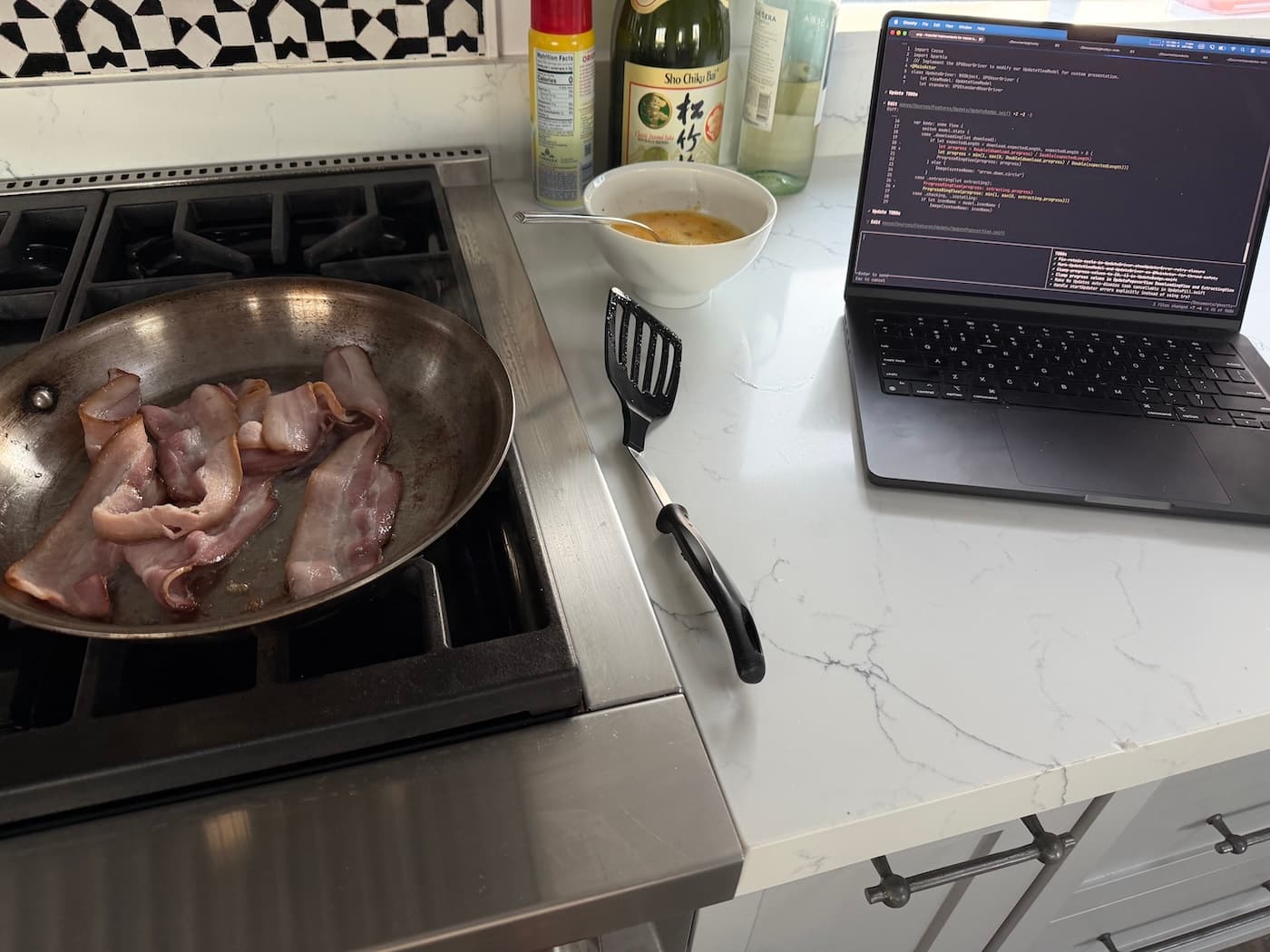
There’s all sorts of dismissals about this, such as “I don’t want to be coding while I’m cooking”
or “Be more present” or whatever. If that’s how you want to be, that’s fine. In my case, in this
specific example, I’m the first person awake in my household and I prep breakfast while everyone
else is still asleep. I don’t do this every waking moment.
All this is to say: it works for me. I’m really, really not trying to convince you. I’m
not associated financially with any AI company. But as someone who has
a lot of success with AI tooling and likes to talk about it, people
ask me to share examples all the time. That’s what I’m doing here.
End
I think the feature is beautiful, works great, and after a final manual
review I merged it5.
For Ghostty users who are on the tip release, it is available now.
For Ghostty users who are on tagged releases, this feature will be
available in Ghostty 1.3.
I’m an outspoken advocate about the importance of sharing agentic
coding sessions publicly6, with one of the reasons being that it’s an
incredibly powerful way to educate others about how to use these tools
effectively. I hope this post helps demonstrate that.
About the Author


